Sign in and reset your password
Sign in with Google or with your email and password, and get a new password if you forgot yours.
Teachers, students and admins all sign in on the same page, at your platform's address, such as codetribe.ai.
Sign in with Google
- Open codetribe.ai/auth/signIn.
- Select Sign in with Google. If you've signed in with Google here before, the button may show Continue as and your name instead: select it.
- If Google asks, choose the Google account you signed up with. If your browser is already signed in to it, Google may skip this step and sign you in straight away.
If there's no account for that Google email yet, CodeTribe shows the email and asks you to choose Register as Student or Register as Teacher. Select one, and CodeTribe makes your account with that Google account, with no second Google step, then opens the next sign-up step.
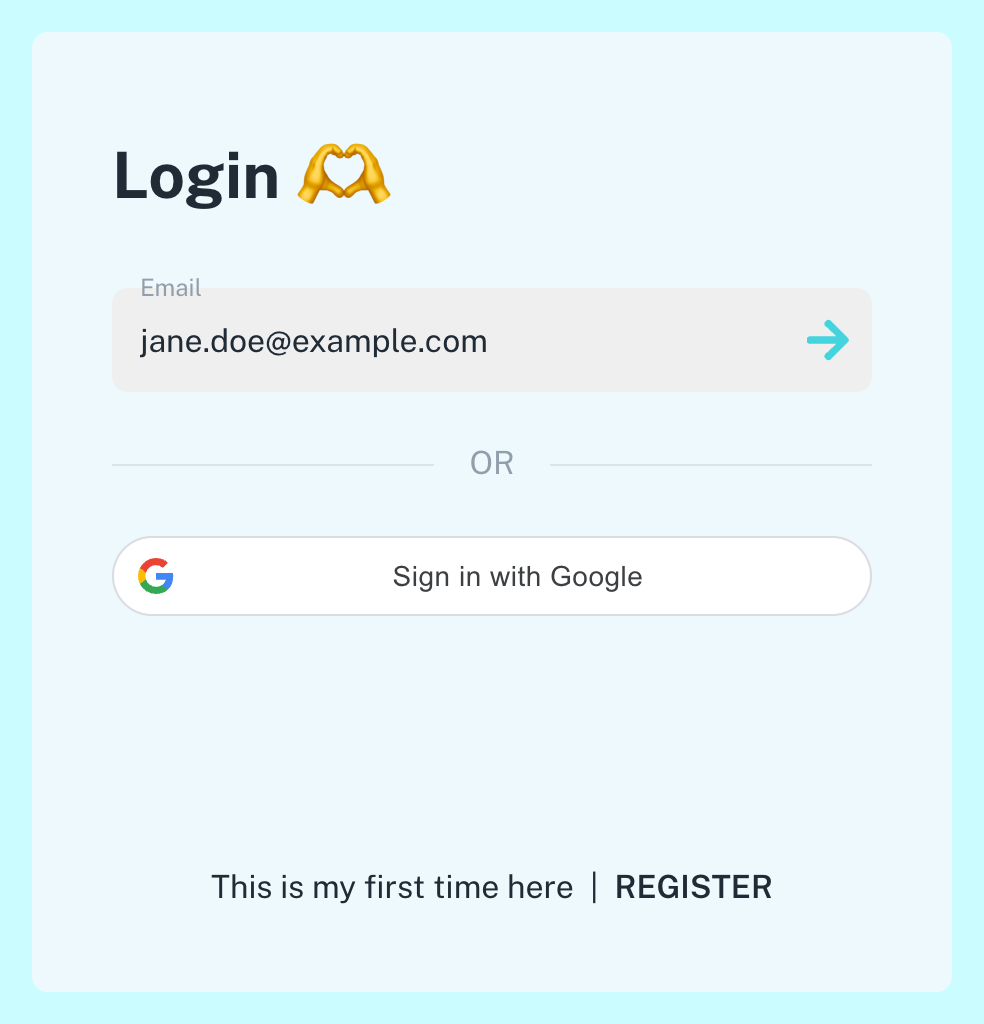
Sign in with your email and password
- On the sign-in page, type your email in Email, then select the arrow next to it, or press Enter.
- Type your password in Password.
- Select LET'S GO!
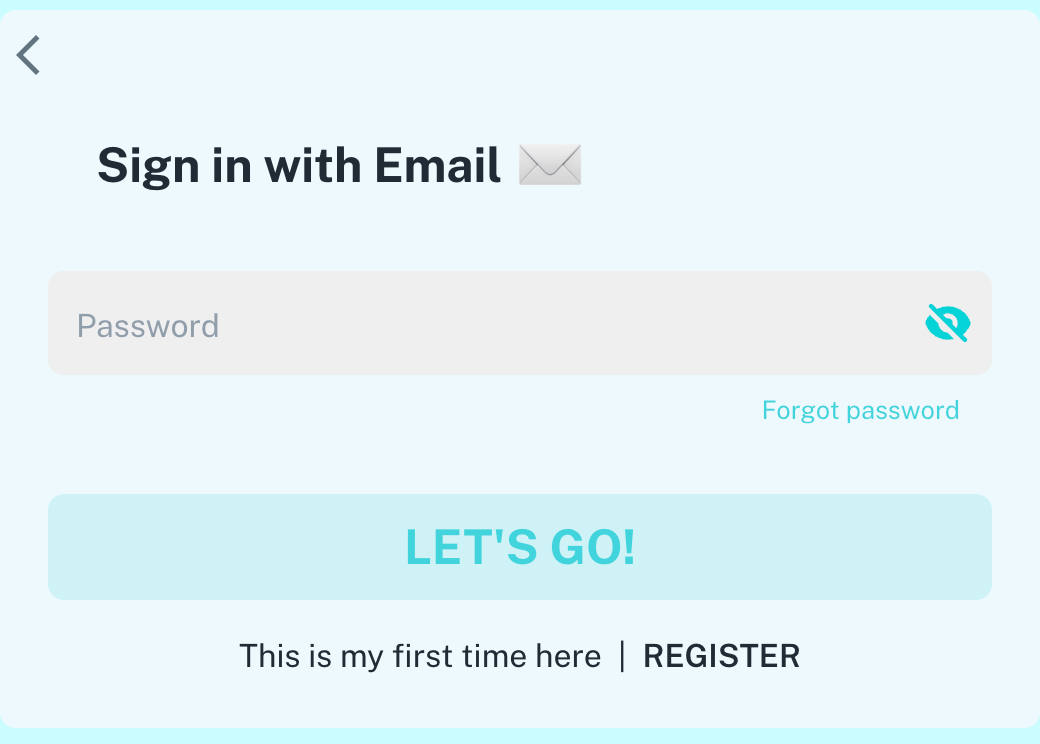
If you see Email not found or wrong password, select GO BACK and check both. If you don't have an account yet, sign up first.
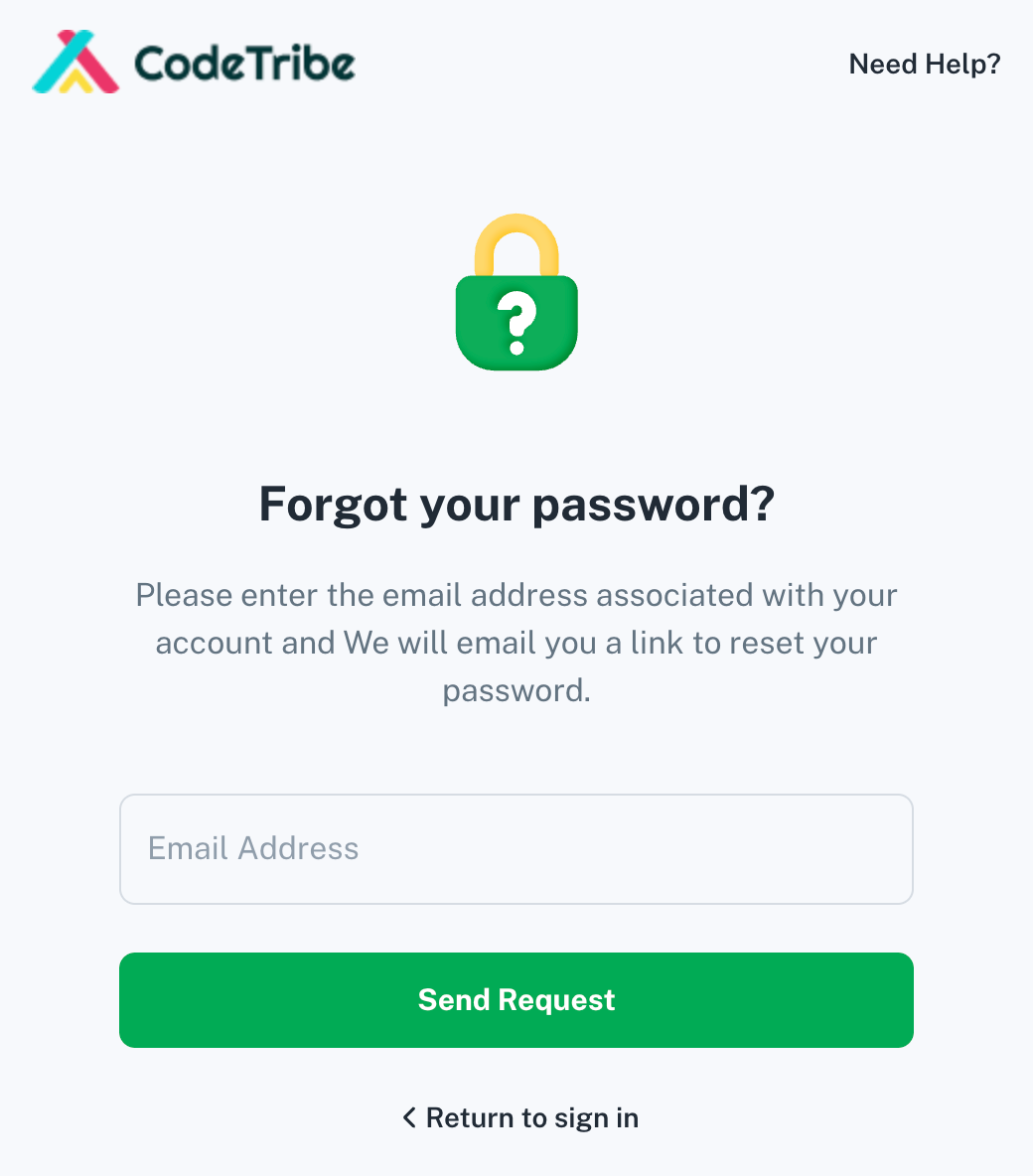
Reset a forgotten password
- On the password step, select Forgot password.
- Type the email address you signed up with in Email Address, then select Send Request.
- Open the email and select its link. It opens the Pick your new password: page.
- Type a new password in Password, and again in Confirm New Password, then select Update Password.
- Sign in with your new password.
If the page says Make sure you have a valid reset link, the link doesn't work. Select Go to reset password and ask for a new email.