Track your students' progress
See how far each student in your class has got, from the whole course down to each lesson, and read their feedback.
Your class page has a Progress tab. It shows how far each student has got in the courses you've given the class, and you can open a course down to its lessons.
See your class's progress
- Open your class: in the sidebar, under TRIBES, select it.
- Select the Progress tab.
Each row is a student and each column is a course. The dark green part of a bar shows how much of the course that student has done.
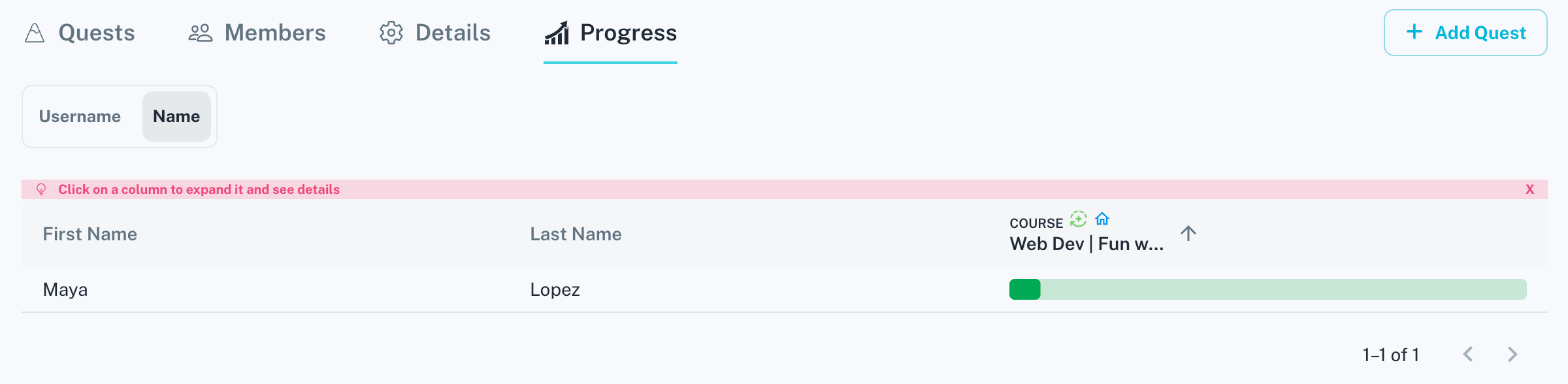
To show usernames instead of names, select Username.
See progress by module and lesson
- Select a course's bar. You now see a column for each of the course's modules.
- Select a module's bar. You now see a column for each of the module's lessons.
- Lesson columns show the lesson's code. To see its name, point to the code.
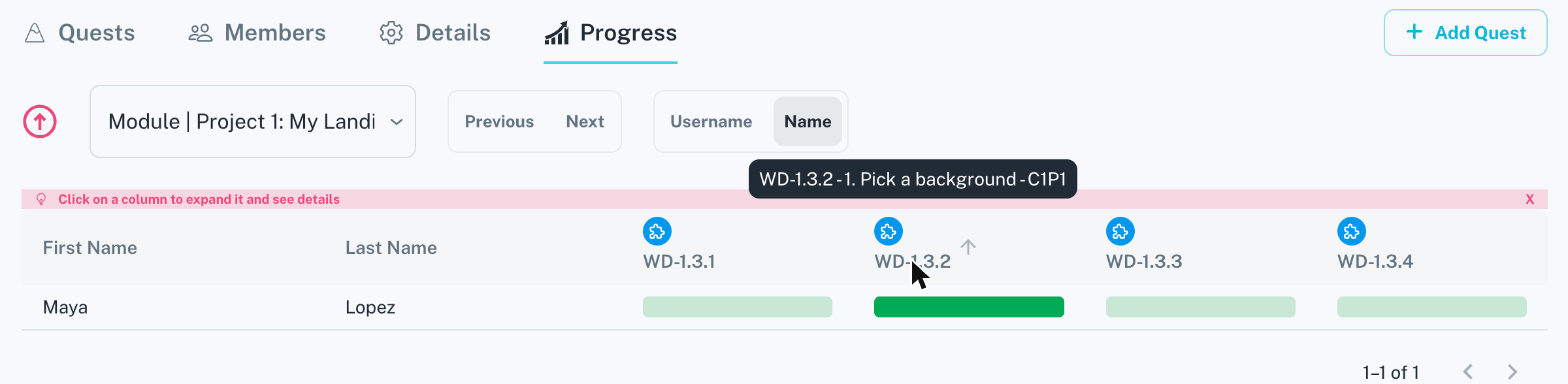
To go back up a level, select the arrow on the left. To see another course or module at the same level, pick it from the list next to the arrow, or select Previous or Next.
See your class's feedback
Next to Progress, the Feedback tab shows what your class's students said about their lessons: their stars, picks and comments. Select a message to see its lesson, its slide and the student's code. Students don't see this tab.
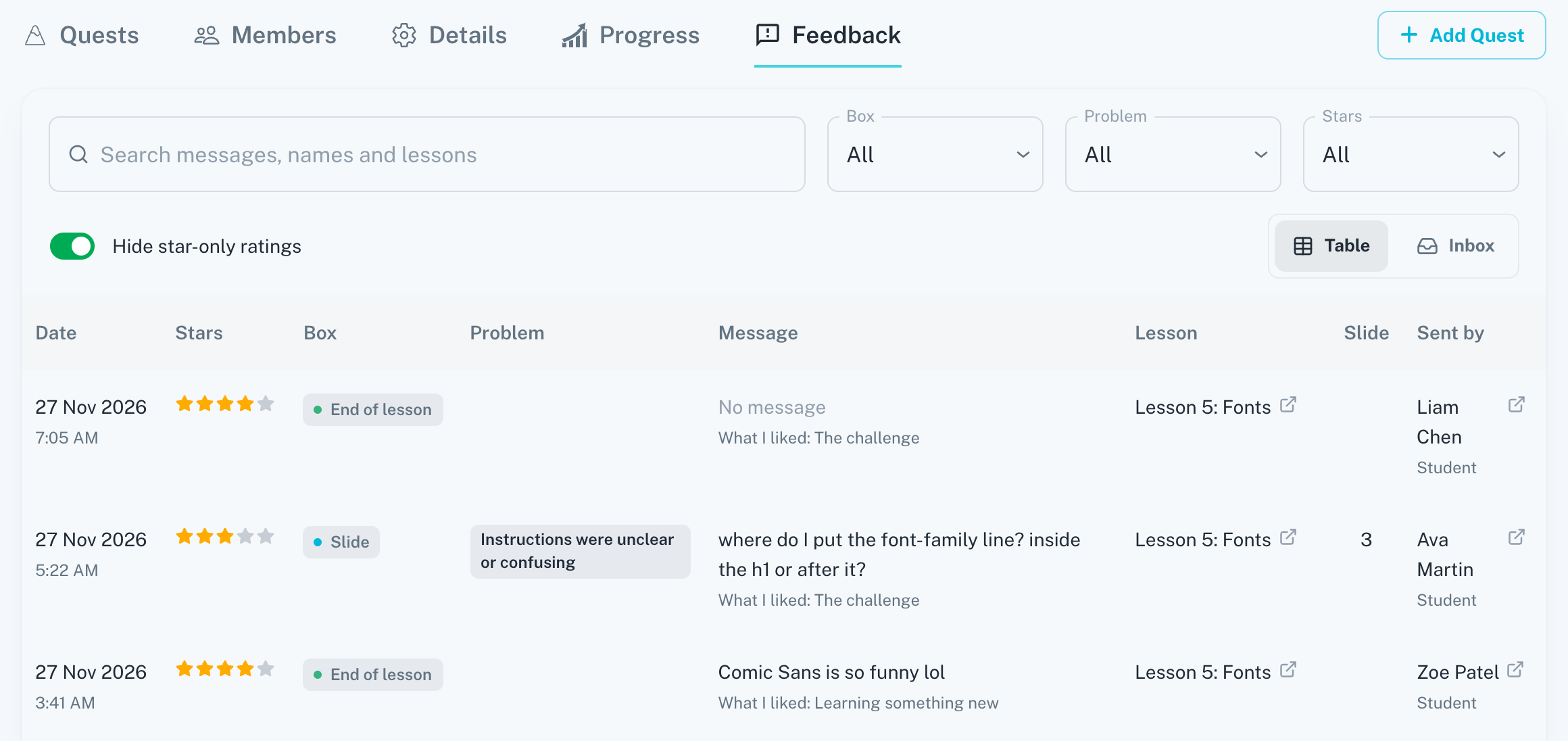
It works like the organization's Feedback page: see Read your students' feedback.