Sell packages to your schools
Set the packages schools, parents and teachers can buy from you, publish your pricing pages, and take card payments through your own Stripe account.
Schools, parents and teachers can buy packages from you on your own pricing pages. You sell two lists: School packages at your address plus /pricing, and Parent & Teacher packages at your address plus /pricing/parents-teachers. You set the packages and their prices. Once your own Stripe account is connected, they pay you by card.
You need a package that includes your own pricing page for schools. Without one, there's no Monetization tab.
Open Monetization
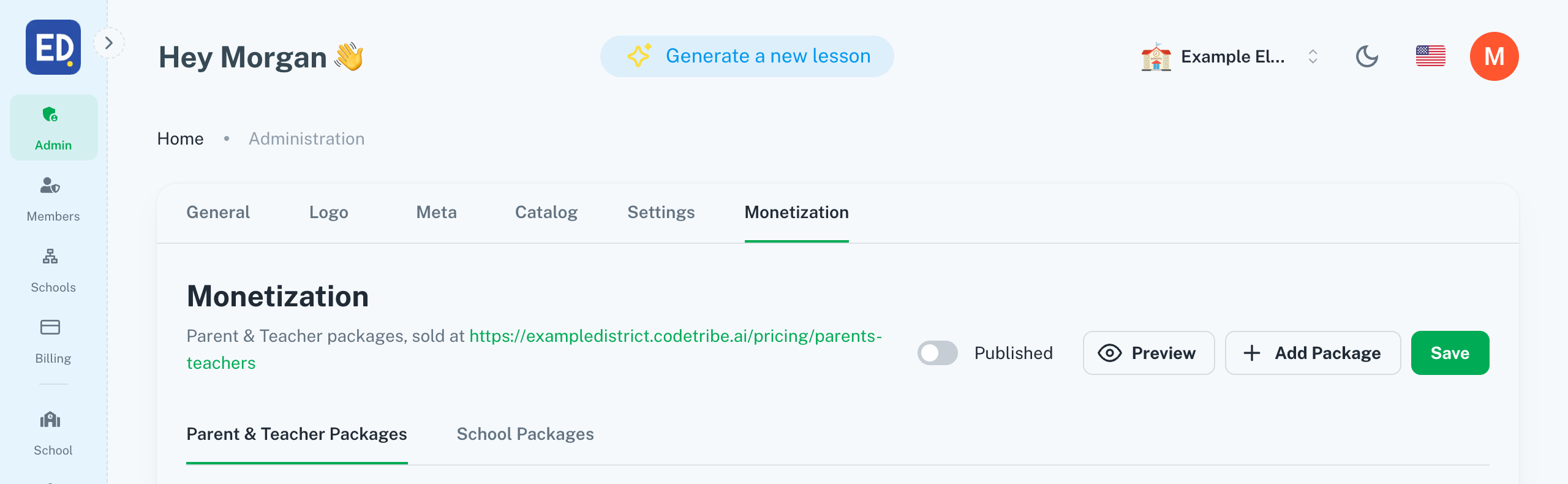
- In the sidebar, select Admin.
- Select the Monetization tab.
Set your packages
Monetization has one tab for each list: Parent & Teacher Packages and School Packages. Each tab starts with ready-made packages and has its own pricing page. Nothing is saved until you select Save.
- Pick a tab.
- Change the heading and subheading of its pricing page if you like.
- On each package, set its name, an optional badge such as Popular, the Monthly price and an optional Setup fee. Then set its limits on teachers, students and classes, its school features, and its other features, one per line.
- The switch at the top of a package shows or hides it. On School Packages, the free package is the one every school without a package gets.
- Select Add Package for another package, and Preview to see the page as buyers will.
- Switch on Published, then select Save. A list that isn't published has no page, so publish each list you want to sell.

Take card payments
Both lists are paid into the same Stripe account, so you connect it once.
- At the bottom of either tab, under Card payments with Stripe, pick your Business country, then select Connect Stripe.
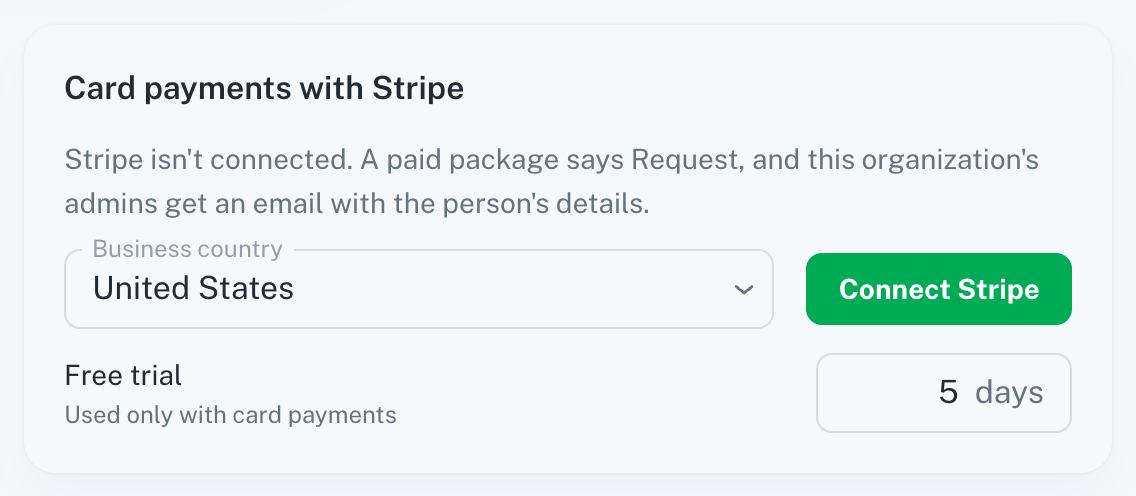
- Stripe opens. Type your email to sign in to your Stripe account or create one, then give Stripe your business details and your bank account. Stripe then sends you back to Monetization. If Stripe still needs something, select Finish In Stripe.
- Once it says Stripe connected., switch on Card payments with Stripe, set the Free trial in days, and select Save. Do this on each tab whose list should take cards.
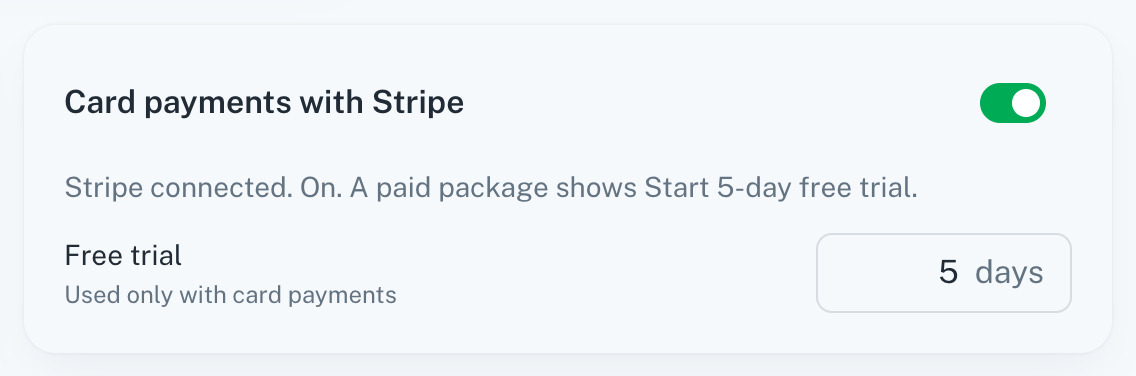
Payments go to your own Stripe account, and you handle refunds there.
Until card payments are on for a list, each of its paid packages shows Request. A teacher's request comes to you by email, and you set their school's package yourself (below).
What teachers see
Your pricing pages link to each other at the top, so visitors can switch between your published lists. Teachers open your pricing pages, or the box that opens when their school reaches a limit. They see their school's package and how much of it they use. In that box, a parent or teacher who signed up on their own sees your Parent & Teacher packages, and a school sees your School packages. With card payments on, a school starts with your free trial, if you set one, and later pays with Pay Now or Get An Invoice. A school that pays by card can switch packages, as in Pay for your organization.
Set a school's package yourself
For a school that pays you another way, or one you give a package to:
- In the sidebar, select Schools.
- On the school's row, select ⋮, then Set package.
- Pick the Package from either list, then select Save.